



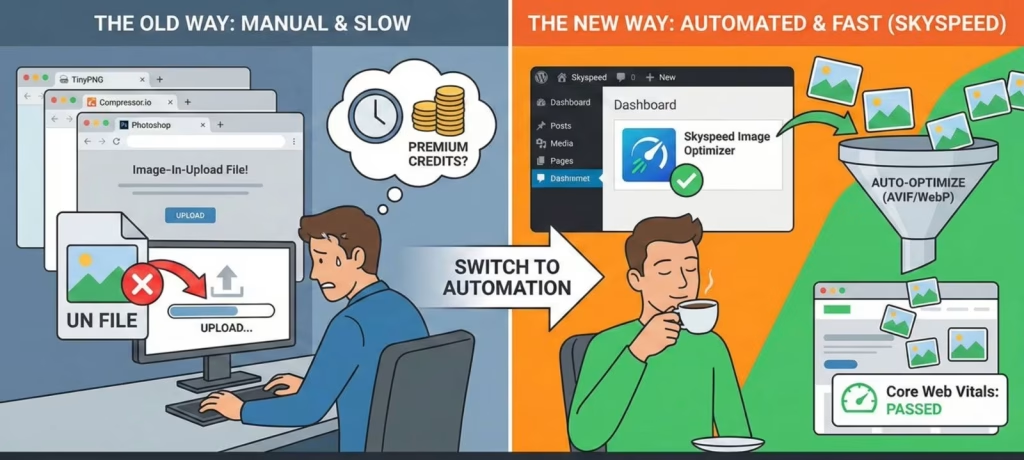

If you run a WordPress website, you likely know the drill. You find the perfect image for your new post, but before you can upload it, you have to stop. You have to open a third-party website like TinyPNG or compressor.io, upload your file, wait for it to process, download the optimized version, and then finally upload it to your media library.
Or worse you skip that step entirely, uploading a massive 5MB image straight from your camera or stock photo site, unaware that you just significantly slowed down your page loading speed.
This manual workflow is not just tedious; it’s a productivity killer. And if you forget to do it even once, your site’s performance takes a hit. But if you try to find a plugin to handle it for you, you usually run into a different problem: The “Freemium” Trap.
If you have searched for image optimizers before, you have probably noticed a frustrating pattern. Most popular plugins claim to be free, but they don’t really do the work unless you pay up.
- The “Credit” System: Many plugins give you 50 or 100 “credits” a month. If you upload just 10 images, WordPress automatically creates multiple thumbnail sizes for each one, meaning you could burn through your entire monthly allowance in a single blog post.
- Gatekeeping Features: Some plugins will compress your images but lock the best features like AVIF conversion or Ultra Compression behind a Pro paywall.
- Ineffective Compression: The truly free versions often do a “lite” compression that barely reduces the file size, forcing you to upgrade if you want to see a difference in site speed.
You shouldn’t have to choose between a slow website and a monthly subscription fee. Today, we’re going to discuss why “set it and forget it” image optimization is the future of WordPress management and why a specific plugin SkySkyspeed – Image Optimizer, WebP & AVIF Convert is the tool you should be using to handle it.
The Hidden Cost of Unoptimized Images
Before we dive into the solution, let’s briefly look at why this is such a critical issue.
- Site Speed & SEO: Google has made it clear: speed matters. Large, uncompressed images are the #1 cause of slow-loading websites. If your site takes more than 3 seconds to load, visitors will leave (bounce), and Google will rank you lower in search results.
- Server Storage Limits: Most hosting plans have storage caps. Uploading raw, high-resolution images eats through your allocated disk space rapidly, potentially forcing you to upgrade to a more expensive hosting plan sooner than necessary.
- Bandwidth Usage: Every time a visitor loads a 4MB image on your homepage, that’s 4MB of bandwidth used. Multiply that by thousands of visitors, and you could hit your hosting limits or slow down the server for everyone.
The Solution: Skyspeed – Image Optimizer, WebP & AVIF Converter
Manual compression is prone to human error. You need a system that works automatically in the background. That is where Skyspeed Image Optimizer – WebP & AVIF Converter comes in.
This plugin is designed to replace the manual “upload-compress-download-reupload” workflow entirely. It intercepts images the moment you upload them to WordPress and optimizes them before they ever hit your live site.
What Does Skyspeed Do?
Skyspeed is a robust, “enterprise-grade” optimization plugin that focuses on performance without the bloat. Here is a breakdown of its core capabilities:
1. Next-Gen Format Conversion (AVIF & WebP)
This is the plugin’s standout feature. While many plugins convert to WebP, Skyspeed prioritizes AVIF.
- Why it matters: AVIF is the successor to WebP. It offers superior compression (often making files 20-30% smaller than WebP) while maintaining better visual fidelity.
- How it works: The plugin uses “Smart Format Selection.” It automatically checks if your server supports AVIF. If it does, it converts your image to AVIF. If not, it falls back to WebP. This ensures your site is always using the most modern, efficient format possible.
2. Intelligent Resizing
Uploading a 6000-pixel wide photo from your iPhone to a blog post that is only 800 pixels wide is a waste of resources.
- The Fix: Skyspeed automatically resizes these massive uploads to a “sane” maximum width (default is 1920px). This single step can save megabytes of data instantly before compression even begins.
3. Automatic “Safety First” Backups
A common fear with optimization plugins is, “What if it ruins my image quality?”
- The Safety Net: Before Skyspeed changes anything, it backs up your original image to a dedicated folder. If you ever feel an image looks “over-compressed,” you can hover over it in your Media Library and click “Restore Original” to revert it instantly.
4. Bulk Optimizer
Already have thousands of unoptimized images on your site? You don’t have to re-upload them. Skyspeed includes a bulk optimizer that can process your entire existing media library in the background.
Why Skyspeed is Important for You
- It Automates Your Workflow
Time is money. By installing Skyspeed, you eliminate the 5-10 minutes wasted per post on manual image compression. You can upload images directly from your camera or Unsplash, and the plugin handles the rest. - It Boosts Your Core Web Vitals
Google’s Core Web Vitals heavily penalize slow visual content. By serving AVIF/WebP images that are properly resized, you significantly improve your Largest Contentful Paint (LCP) score, which is a direct ranking factor for SEO. - It Reduces Hosting Costs
By compressing images by up to 80-90% without visible quality loss, you use significantly less disk space on your server. This keeps your hosting bills low and your site lean. - Live Previews
Unlike many other tools where you have to guess the settings, Skyspeed offers a Live Preview tool. You can see a “Before vs. After” comparison on a real image to adjust your quality settings perfectly before applying them to the whole site.
You shouldn’t have to be a technical wizard to have a fast website. The era of manually using third-party compression websites is over. By using a tool like Skyspeed Image Optimizer, you ensure that every single image on your website is lean, fast, and beautiful automatically.
Ready to speed up your site? You can download the plugin for free from the WordPress repository here: Skyspeed Image Optimizer